
How to Use Kling 4 AI: Text to Video, Keyframes and Omni Reference
A step-by-step Kling 4 AI tutorial: make text to video, animate images with keyframes, combine reference images, choose duration, resolution and aspect ratio, understand credit costs and download your videos.
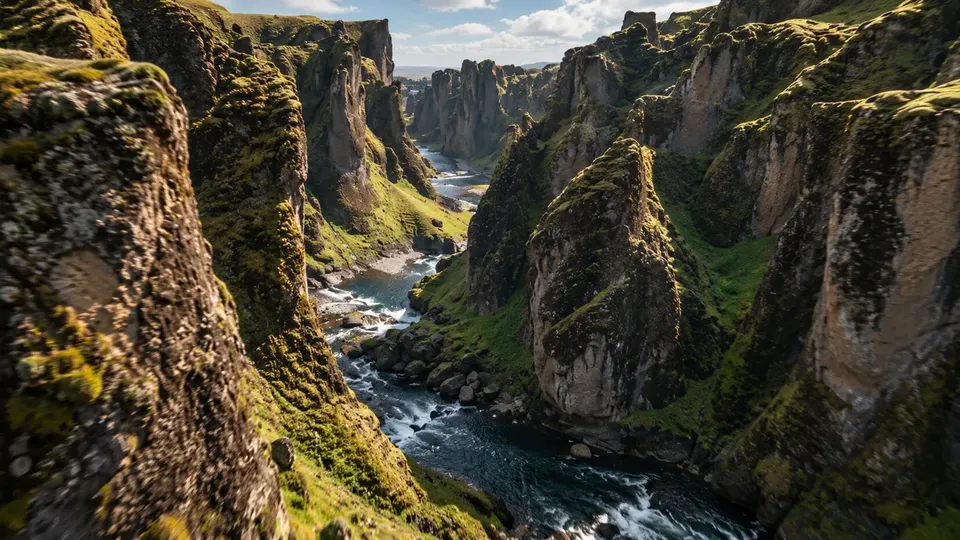
Kling 4 AI is the latest Kling video model, and you can use it straight from your browser in our studio. No install, no subscription. This tutorial walks through everything you need to make your first Kling 4 video: text to video, image to video with keyframes, omni reference, picking the right settings, what it costs and how to download the result.
Kling 4 Studio is an independent browser studio for Kling AI models. We are not affiliated with Kuaishou or Kling AI.
Before you start
- Create an account. New accounts get free signup credits, enough for a first video at 720p.
- Open the studio. Go to the studio on the homepage. Everything below happens there.
- Pick a model. This guide focuses on Kling 4.0. You can also choose Kling 4.0 Flash for fast, cheap drafts, or Kling 3.0. See our Kling 4 vs Kling 3.0 comparison if you are unsure.
Step 1: Make a Kling 4 text to video
Text to video is the simplest mode. You describe the shot and Kling 4 generates the whole clip, including sound.
- Select Kling 4.0 as the model.
- Write your prompt. Cover the subject, the action, the setting, the camera move, the lighting and the sound. Prompts can be up to 2,500 characters.
- Choose duration, resolution and aspect ratio (see Step 4).
- Click generate.
A good first prompt:
FPV drone shot flying low through a narrow red sandstone canyon at sunset, banking around tight curves and skimming a shallow river, then rising out over a wide desert valley. Warm golden light. Rushing wind and a rising orchestral score.
For more structure and examples, read the Kling 4 prompt guide.
Step 2: Image to video with Kling 4 keyframes
Keyframes mode turns your own images into motion. You decide where the video starts, where it ends and which frames it passes through.
- Switch to Keyframes mode.
- Upload a first frame. This is the opening image of the video.
- Optionally add middle keyframes, up to 8, and a last frame.
- In the prompt, describe what happens between frames using the tokens
@first_frame,@keyframe_1,@keyframe_2and@last_frame.
The total number of frames is capped by duration: roughly the duration in seconds plus one, with a maximum of 10. A 5 second clip fits about 6 frames. If you want to use all 10, choose 9 seconds or longer.
Example prompt:
Begin on @first_frame as the camera slowly pushes in. The woman turns toward the window, reaching @keyframe_1, then opens it and wind lifts her hair as we arrive at @last_frame. Soft morning light, quiet street sounds.
Tip: keep the same character, outfit and lighting in every frame. Big jumps between frames produce morph-like transitions.
Step 3: Use Kling 4 omni reference
Omni Reference mode builds a brand new scene from up to 10 reference images: a character, a product, a costume, a location, a style.
- Switch to Omni Reference mode.
- Upload your reference images. They are numbered in order.
- In the prompt, refer to them as
@image_1,@image_2and so on, and say what each one is for.
The man from @image_1 holds the watch from @image_2 up to the camera in the workshop from @image_3. Slow push-in to a close-up of the watch face. Warm tungsten light, the ticking of clocks in the background.
Omni reference is the easiest way to keep a character or product consistent across several clips. It also works in Kling 4.0 Flash.
Step 4: Choose duration, resolution and aspect ratio
Duration
Kling 4.0 renders 3 to 30 seconds. Short clips of 5 to 8 seconds are best for testing. Use longer durations for full scenes, dialogue or when you need many keyframes.
Resolution
- 720p for drafts and most social posts.
- 1080p for polished web and video use.
- 4K for final deliveries, large screens or cropping later.
Note that 1080p and 4K require a credit pack. Free signup credits cover 720p.
Aspect ratio
Kling 4.0 supports 16:9, 9:16, 1:1, 21:9, 4:3 and 3:4. Use 9:16 for Reels, TikTok and Shorts, 16:9 for YouTube and websites, 1:1 for feeds, and 21:9 for a cinematic widescreen look. Set it in the studio rather than only writing it in the prompt.
Audio
Native synchronized audio is always on with Kling 4.0, so describe the sound you want in the prompt.
Step 5: Understand Kling 4 costs
Kling 4 is priced in credits per second of video:
| Model | 720p | 1080p | 4K |
|---|---|---|---|
| Kling 4.0 | 12 | 17 | 40 |
| Kling 4.0 Flash | 7 | — | — |
Some examples: a 5 second Kling 4.0 clip at 720p costs 60 credits, a 10 second clip at 1080p costs 170 credits, and a 5 second Flash draft costs 35 credits.
Credits come in one-time packs that never expire. There is no subscription.
| Pack | Price | Credits |
|---|---|---|
| Starter | $9.90 | 260 |
| Creator | $29.90 | 960 |
| Studio | $49.90 | 2,000 |
| Business | $99.90 | 5,000 |
If a video fails, the credits are refunded automatically. See pricing for details.
Step 6: Wait, review and download
Most videos render in 1 to 4 minutes. You can keep working in the studio while it runs.
When it is done, preview the clip in the studio. Every video you make is saved in My videos, where you can watch it again and download it. If the result is close but not right, change one thing in the prompt at a time and run it again.
A fast workflow that saves credits
- Draft the idea in Kling 4.0 Flash or Kling 4.0 at 720p, with a short duration.
- Adjust the prompt until the motion and framing are right.
- Render the final in Kling 4.0 at 1080p or 4K, at the full duration you need.
Looking for ideas first? Browse the gallery to see what Kling 4 can do.
FAQ
Is Kling 4 free to use?
New accounts get free signup credits for a first video at 720p. After that you buy one-time credit packs, starting at $9.90 for 260 credits. There is no subscription and credits never expire.
How long can a Kling 4 video be?
Kling 4.0 generates 3 to 30 seconds per clip. Kling 4.0 Flash goes up to 20 seconds, and Kling 3.0 up to 15 seconds.
Does Kling 4 AI generate sound?
Yes. Kling 4.0 always produces native synchronized audio, including ambient sound, music and dialogue you describe in the prompt. Flash also includes native audio.
How many images can I upload?
In Keyframes mode you can use a first frame, up to 8 middle keyframes and a last frame, with the total capped by duration at a maximum of 10. In Omni Reference mode you can upload up to 10 reference images.
Is this the official Kling AI website?
No. Kling 4 Studio is an independent browser studio that gives you access to Kling AI video models. We are not affiliated with Kuaishou or Kling AI.